
Updated on July 31st, 2025 at 05:33 pm
Finding the URL of your XML sitemap can be faster, simpler and easier if you follow these steps.
Here are 3 methods to help you get and see the sitemap of a website so you can locate yours, or a competitors, sitemap.xml file.
- Load your robots.txt file in your browser
- Load the page yourdomain/sitemap.xml in your browser
- Site Search Operator in Google
- How to find your sitemap URL on WordPress
- How to find your sitemap URL on Shopify
- Find your sitemap URL in Google Search Console
- How to find your Sitemap URL on a custom website CMS
- What do Search Engines use Sitemap files for?
- Finding Your Sitemap.xml File FAQs
.xml sitemaps are an important part of technical SEO and can help search engines with URL discovery, crawl efficiency and to understand the structure of your website.
Load your robots.txt file in your browser
Load the page;
https://yourdomain.com/robots.txtreplace yourdomain.com with your domain and extension with your domain extension.
You should see the robots.txt file for your website, which should look something like the example below.

This should help you find all versions of your sitemap for all the subfolders and pages of your website.
You may have separate sitemap files for;
https://yourdomain.com/page-sitemap.xml

https://yourdomain.com/blog-sitemap.xml

https://yourdomain.com/author-sitemap.xml
Your sitemap.xml file should be included in your robots.txt file. If it’s not there, then once you’ve found out what URL your sitemap.xml file exists on, you should add it to your robots.txt file.
Here is what else a robots.txt file can do.
If your robots.txt file does not contain a link to your sitemap.xml file, then you should add a link to your sitemap.xml file to the robots.txt file.
Load the page yourdomain/sitemap.xml in your browser
If you can’t see your sitemap.xml file in your robots.txt file, you can simply guess your sitemap.xml URL.
Load the page;
https://yourdomain.com/sitemap.xml Replace yourdomain with your domain and .com with the extension relevant to your site.
You may find your sitemap.xml file live at the URL you’ve tested or you may automatically be redirected to the URL where your sitemap.xml file is live. For example, you may resolve on;
https://yourdomain.com/sitemap_index.xmlYou can also create separate sitemaps for sections of your website, for example;
https://yourdomain.com/catalogue/sitemap-index.xmlCan include any URLs within the /catalogue/ subfolder, but would not support any URLs that are within the /information/ subfolder.
Site Search Operator in Google
Use the site search operator:
site:example.com filetype:xml Using this search operator can help you find xml file types on the domain of the website which you’re trying to locate the sitemap.xml file for.
Try it yourself, enter;
site:msn.com filetype:xmlAs a search in Google and you should see results like;

You can use other search operators too!
For example, if you wanted to find any page on a domain with sitemap in the URL, you could use;
site:example.com inurl:sitemapBe aware, this will also surface pages on the website which include “sitemap” in the URL.

Feeling curious about sitemaps and how other sites use them? You can also search across the entire internet, using the search operator: inurl:sitemap filetype:xml
Similar to site:, this searches for the sitemap.xml of every website indexed in Google’s search engine, when I tested this, I got 19.4 million results.

The best ranking sitemaps include; Google, gov.uk, openai and Apple.
How to find your sitemap URL on WordPress
Your website admin should be able to help you locate your sitemap.xml file.
Admin systems like WordPress have different methods of finding the sitemap.xml file URL for your website and the location of the information may depend on the plugin that you are using the generate the sitemap file for your website.
Yoast SEO
If you have Yoast installed, hover over Yoast and select “general”, select the “features” then scroll down to the XML sitemaps option and toggle it too on.

Yoast usually publishes a sitemap index file on;
https://yourdomain.com/sitemap_index.xmlJetpack
Another common sitemap tool for WordPress is jetpack. Check if your site is using Jetpack to generate an XML sitemap.
Click on Jetpack from the WordPress menu, click settings in the top right corner, click “traffic” and scroll down the page to the “sitemaps” subheading.

If you’re not using any other plugins for sitemaps, you can toggle the “generate XML sitemaps” option to “on” to have Jetpack generate a list of website URLs for search engines to consume.
Jetpack normally generates a sitemap index file on:
https://yourdomain.com/sitemap.xmlThe SEO Framework
The SEO Framework plugin can handle your sitemap.xml file for you. To configure your sitemap through The SEO Framework, click on SEO in the lefthand menu in your WordPress admin, scroll down on the page until you reach the “sitemap settings” header.
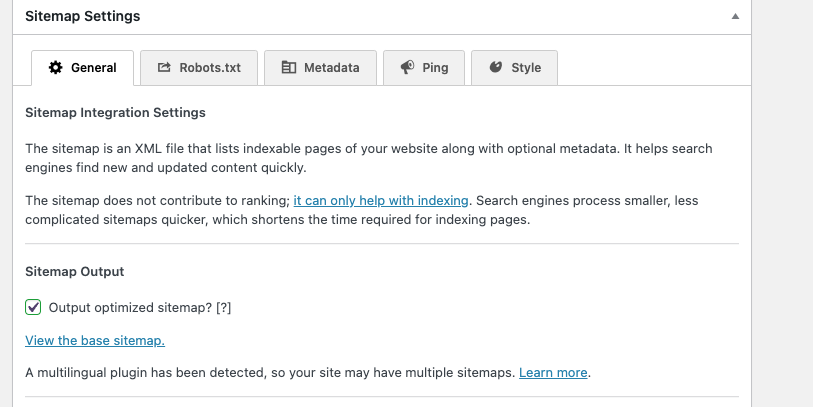
Click, “output optimized sitemap?” to toggle it to yes.
The SEO framework tends to output sitemap.xml files on:
https://yourdomain.com/sitemap.xmlThere’s also a link from the plugin to the base sitemap URL so you can see specifically where it exists.
How to find your sitemap URL on Shopify
Shopify websites usually have their sitemap.xml index file located on:
https://yourdomain.com/sitemap.xml

https://yourdomain.co.uk/sitemap.xml
And usually have sitemap.xml files for:
https://yourdomain.co.uk/sitemap_products_1.xml - for product pages

https://yourdomain.co.uk/sitemap_pages_1.xml - for website pages

https://yourdomain.co.uk/sitemap_collections_1.xml - for collections pages
https://youdomain.co.uk/sitemap_blogs_1.xml - for blog pages
Now that you’ve found your Shopify sitemap URLs, you can check each sitemap file to ensure that only indexable pages are included there.
Find your sitemap URL in Google Search Console
Log in to your Google Search Console account and select “sitemaps” in the lefthand menu.

You’ll then see all of the sitemaps which have been submitted to Google for your website through Google Search Console.
You’ll see dates they were added, discovered page counts, discovered videos and each sitemap.xml URL slug.

This is where you can add your sitemap.xml file to Google Search Console too.
This will help search engines discover your sitemap.xml files, crawl your URLs and index your content.
How to find your Sitemap URL on a custom website CMS
If you’re using a custom CMS (content management system) or a different platform, we’d recommend checking with developers in your technical team or your technical agency.
Using the above methods is also recommended for helping to identify where on your website your sitemap.xml file exists.
A working sitemap.xml is critical to the SEO performance of your website and management of URLs in your sitemap.xml file via your CMS is a highly desirable SEO feature that some CMS offer.
What do Search Engines use Sitemap files for?
Search engines like Google, Bing, Yandex and Yep use sitemap.xml files to quickly locate important and valuable URLs on your website.
By listing your live, indexable pages in your sitemap.xml file, you can help ensure they’re indexed, changes are picked up quickly after having been implemented and search engine bots are crawling your website efficiently.
Because sitemap.xml files are only for important and valuable pages on your website, you should remove any URLs that cannot be indexed in search engines. This includes;
- 3XX redirect URLs
- 4XX not found URLs
- URLs with meta robots “noindex”
- URLs with the X-robots “noindex” tag
- URLs blocked in your robots.txt file
- User account pages and pages behind logins
Now that you’ve found your sitemap.xml file, why not ping your sitemap to Google to inform them of changes to your website.
Once you have found your sitemap.xml file, you should also add your sitemap to Google search console, so search engine crawlers can locate it again when they are re-crawling your website.
Remember your sitemap.xml file is reserved for canonical URLs, which means those you want to be and are technically able to be indexed.
Find out what canonical tags do for your pages with our canonical tag course.
Here is how to set up google search console on your website if you haven’t already.
Finding Your Sitemap.xml File FAQs
How to check a website sitemap?
If you’ve added your sitemap.xml file to Google Search Console, check regularly for crawl errors or issues with fetching the sitemap.xml file then diagnose the issues. If you’re building a sitemap.xml file for a new website, follow Google’s best practice recommendations to build and submit your sitemap.
How to download sitemap
Open the sitemap.xml page of the website which has the sitemap you want to download. Click File on your browser window and select “save page as” you’ll be able to save the sitemap.xml file as an .xml file type. You can then extract the URLs and use them to help create an SEO strategy, review the indexable content and plan your organic growth.
How to extract sitemap from website
You can extract URLs from a sitemap.xml in a few ways; using a crawler like screaming frog, saving the sitemap.xml, copying and pasting the URLs into excel or using specialised scripts in Google Sheets to extract the URLs from sitemap.xml files.
What to do with non-indexable URLs in a sitemap.xml file?
If your sitemap contains noindex pages, URLs which are blocked by robots.txt and pages which include a proper canonical tag, then you can remove them from your sitemap.xml file. Do this by; crawling the URLs listed in your sitemap.xml file, identify those which aren’t indexable and work through the list to ensure that you; edit the URL itself to make it clear it isn’t indexable or update the sitemap.xml file to remove the noindex pages.
Does a sitemap.xml help SEO?
Yes a sitemap.xml is important for SEO because it helps search engines discover and efficiently crawl the URLs on your website. Search engines can discover and crawl pages in other ways, but sitemap.xml files offer an efficient, recognised method of discovering and consuming URLs. Plus, a well structured sitemap.xml files can help you manage your indexable URL content better.
Is there a limit on URLs you can include in a sitemap.xml file?
Yes, there is a limit for sitemap.xml files. It is 50,000 URLs or 10MB in file size when uncompressed. Whichever is reached first. To navigate around file size and URL limits use a sitemap index file and list multiple, broken down and organised sitemaps within your parent sitemap index file.
Published on: 07/12/2022